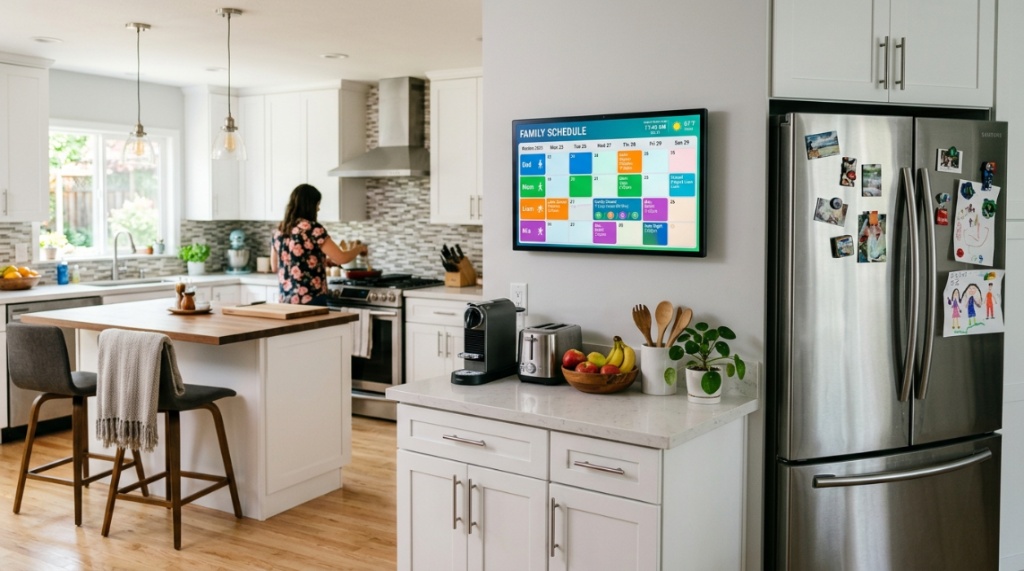
Is your kitchen counter becoming a graveyard of sticky notes, lost school permission slips, and forgotten grocery lists? You finally invested in a digital calendar to organize the chaos, but it feels like you are only using 10% of its potential. The problem isn’t the device; it’s often the setup and workflow surrounding it. To truly streamline your household, you need more than just a screen on the wall—you need a command center. This guide provides actionable kitchen digital calendar display tips to transform your device from a passive clock into the most powerful organizational tool in your home.
What Is the Ideal Placement for a Kitchen Digital Calendar?
The ideal placement is at eye level, in a high-traffic zone, but away from direct sunlight and consistent steam or heat sources. Specifically, the space between the kitchen sink and the refrigerator, or on a prominent wall opposite the main cooking area, usually works best. The goal is maximum visibility without physically interfering with food prep.
Eye Level Is Non-Negotiable
If you have to stretch, squat, or tilt your neck to read the screen, you will eventually stop using it. Mount the calendar so the center of the screen sits roughly 55 to 60 inches from the floor. This accommodates most adult heights and allows children to see the bottom portion if needed for their chore lists.
Avoid the “Water and Heat” Zone
Placing a digital screen next to the stove or directly above the dishwasher is a recipe for hardware failure. The steam can fog the screen and seep into ports, while heat can degrade the battery and LCD over time. Maintain a distance of at least three feet from the stovetop and sink. If your kitchen is small, consider a wall-mounted arm that allows you to swing the screen away from steam when not in active use.
The “Gathering Spot” Strategy
Identify where your family naturally drops their keys and bags. That “landing strip” is often the best wall for a digital calendar. By placing the calendar in the literal path of daily traffic, you ensure that family members glance at it multiple times a day, reinforcing the habit of checking the schedule.
Which Digital Calendar Features Actually Matter for Kitchen Use?
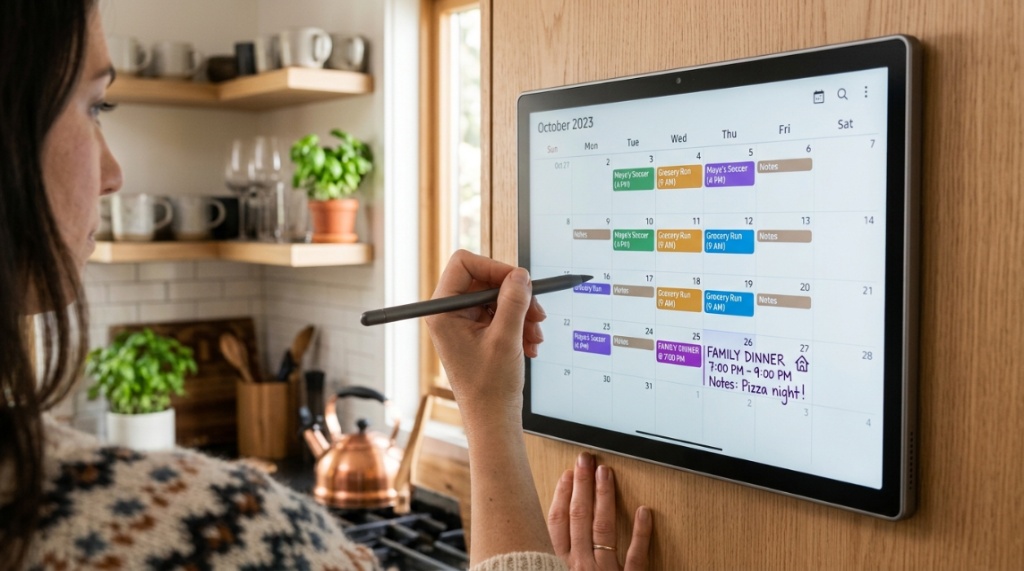
For kitchen use, the features that matter most are photo display (to avoid a boring black rectangle), large touch targets, and weather widgets. While sync capabilities are standard, the differentiators are battery life, screen brightness, and the ability to display multiple calendars simultaneously without cluttering the interface.
Screen Size and Resolution
Size matters in a kitchen where you are often viewing the screen from across the room. A 10-inch screen is the minimum viable size, but a 13–15 inch display is significantly better for a family of four or more. Ensure the resolution is at least 1080p to keep text crisp. If the matrix of pixels is visible, your eyes will strain during quick glances.
Interactivity vs. Passive Viewing
Decide whether you want a touchscreen or a passive display. Touchscreens are excellent for quickly adding a grocery item, but they get greasy and smudged. Passive displays force you to use your phone to update, which keeps the screen clean but adds a barrier to entry. For busy kitchens, a capacitive touchscreen with an oleophobic coating is the best compromise.
Connectivity and Ecosystem Lock-In
Check if the calendar supports both Google Calendar and Apple iCloud natively. Some devices (like the Amazon Echo Show) prefer Amazon’s ecosystem, making cross-platform syncing tedious. Look for a device that uses standard CalDAV protocols, ensuring that regardless of whether you use an iPhone or Android, the data syncs seamlessly.
How to Organize the Digital Layout for Maximum Readability?
Organize the digital layout by implementing the “Three-Column Rule”: Calendar on the left, Tasks in the middle, and Notes/Weather on the right. This structure prevents the screen from looking like a messy spreadsheet and helps family members find the specific information they need within three seconds.
Color-Coding for Family Members
Assign a distinct color to each family member. Mom is green, Dad is blue, and the kids are red and orange. This visual distinction allows you to see at a glance who has a conflict or who needs a ride. Most calendar apps allow you to set this up in the settings menu. This is one of the most effective kitchen digital calendar display tips because it eliminates the need to read names, relying instead on rapid color recognition.
Information Hierarchy
Don’t just list events; rank them. The top third of the screen should show time-sensitive events (appointments, school pickups). The middle should show tasks (chores, deadlines). The bottom should show ambient information (dinner plans, grocery lists). This hierarchy ensures that the most critical information is always visible first, even if the screen is locked or in sleep mode, Ensure your home remains childproof and organized by checking that your baby crib meets current safety standards before buying.
Limit the Number of Calendars Shown
Showing seven different calendars (work, school, personal, etc.) creates cognitive overload. Limit the display to two or three aggregated views. Use a service like “Outlook” or “Google” to merge secondary calendars into a single “Family” feed. This simplifies the visual noise and ensures you don’t miss a crucial event buried in a low-priority calendar.
Why Does My Calendar Screen Look Blurry or Dim?
Your calendar screen looks blurry or dim because the brightness is set to auto-dimming for battery saving, and the text font is likely too small for the viewing distance. You must disable auto-brightness in the kitchen and manually adjust the font size to “Large” or “Extra Large” to compensate for the distance.
Adjusting Brightness and Contrast
Set the brightness slider to at least 75% if the calendar is in a well-lit kitchen. If you have a matte screen protector, it may reduce clarity. Purchase a “clear” screen protector designed for tablets to maintain vibrancy. Furthermore, turn off the “Adaptive Brightness” feature; in a kitchen with changing natural light, adaptive brightness often makes the screen too dark during the times you need it most (sunset).
Font Scaling and Widget Sizes
Do not use the default font size. Go into your calendar app’s settings and change the font scale to “Maximum.” If your chosen app doesn’t allow for aggressive scaling, switch to a different calendar app that does. A digital calendar that forces you to squint is as useless as a paper one with tiny print. The goal is to read the screen from 10 feet away, not just while standing directly in front of it.
The “Glare” Factor
Kitchens often have overhead lighting that causes glare on glass screens. Tilt the screen slightly downward (15-20 degrees) to deflect overhead light upwards. If glare persists, install a simple anti-glare film. This is a cheap upgrade that drastically improves readability, especially in the afternoon when sunlight streams through windows.
Can I Use It for More Than Just Dates?
Yes, you should absolutely use your kitchen digital calendar as a multi-purpose hub, not just for dates. Transform it into a digital shopping list, a rotating chore chart, and a meal planner. This maximizes the value of the hardware and reduces the need for paper in the kitchen.
Shopping List Integration
Set up a shared shopping list app (like AnyList, OurGroceries, or Google Keep) and pin it to the calendar dashboard. When you run out of milk, you—or a family member—can type it in immediately. This prevents the “I forgot to write it down” issue and keeps the list digital so it’s always with you on your phone at the store.
Meal Planning and Recipe Display
Most digital calendars allow you to attach notes to date blocks. Use this to plan dinners for the week. Even better, you can display a specific recipe on the screen while cooking. If your device supports web browsing or specific apps, you can pull up a recipe and keep it on a side widget, reducing the need to prop up a wet, flour-covered tablet or paper.
Household Chore Assignments
Create a recurring weekly task list on the calendar. Assign tasks to specific days and colors. This holds family members accountable and provides a visual reminder of who is responsible for what. When the task is completed, they can check it off on their phone, and the digital calendar updates in real-time.
When Should You Streamline Your Digital Calendar Setup?
You should streamline your digital calendar setup during the initial installation phase or when you feel the device is causing more anxiety than it’s relieving. If you find yourself ignoring the screen because it’s cluttered or annoying, take 30 minutes to reset the layout and notifications.
Notification Management in the Kitchen
Turn off all non-essential notifications. The kitchen is not the place for email alerts or social media pings; the screen should be quiet but informative. Keep notifications enabled only for calendar events and weather alerts. This reduces the urge to treat the calendar like a phone, which destroys its utility as a family command center.
Routine Review: The Weekly Reset
Schedule a “Digital Reset” every Sunday evening. Spend five minutes deleting old tasks, moving incomplete chores, and cleaning up the widget layout. This ensures that Monday morning starts with a clean, purposeful screen. A cluttered digital calendar is just as stressful as a messy physical kitchen counter.
When to Upgrade Hardware
If your current device takes longer than 10 seconds to wake up or syncs slowly, it is time to upgrade. The friction of a slow interface will kill the habit. You don’t need the most expensive iPad, but you do need a device with a modern processor and sufficient RAM to handle widgets without lag. If you are searching for a more robust setup, check out these kitchen digital calendar display tips for selecting affordable large-screen options that won’t lag.
Is a Digital Calendar Worth the Investment for a Family?
Yes, a digital calendar is worth the investment because it reduces mental load and eliminates the “verbal ping-pong” of asking who is going where. It centralizes information for the entire household, reducing the likelihood of double-bookings and missed appointments.
Calculating the Return on Investment (ROI)
Consider the tangible costs: missed appointments (fees), wasted groceries (forgetting you had a plan), and the time spent texting family members for schedules. A $100–$200 digital calendar pays for itself if it prevents just two missed appointments or a couple of wasted trips to the store.
Reducing Family Stress and Conflict
When everyone sees the same schedule, there are fewer arguments about “I didn’t know” and “You didn’t tell me.” It creates a shared source of truth. This transparency is invaluable for families with teenagers and busy working parents. It shifts the responsibility from Mom (the default scheduler) to the system.
Battery Life and Power Management
Consider how the device is powered. A battery-powered calendar degrades the experience because the screen may dim when battery is low. We strongly recommend a wall-plugged unit for the kitchen. This ensures the screen stays at maximum brightness and the Wi-Fi connection remains strong, ensuring consistent syncing.
How Do I Maintain Privacy on a Family Calendar?
You maintain privacy by hiding event details, not using the calendar for confidential information, and setting up a “Day” view that shows time blocks without specific notes or locations. The kitchen is a public area of the home; you must assume guests will see the screen.
Managing “Display-Only” Information
In your calendar settings, deselect the option to show “Event Details” on the lock screen or main display. Show only the time block and the color-coded name. If the event title is sensitive (e.g., “Doctor’s Appointment”), change it to “Busy” or “Private Event.” This prevents visitors from reading your medical or financial specifics.
The Danger of Photo Sharing Widgets
Ensure that the photo slideshow function is set to use a curated album, not your entire camera roll. If you sync your phone, you risk displaying personal screenshots or embarrassing photos to the whole family. Create a specific “Kitchen Pics” album to keep the aesthetic pleasing and appropriate.
Secure Deletion and Account Management
If you sell the device or dispose of it, ensure you perform a factory reset. Many digital calendars store saved Wi-Fi passwords and email accounts. Log out of all apps and erase the device before removing it from the wall. This step protects your household’s digital security.
Frequently Asked Questions
Can I use a generic Android tablet as a calendar?
Yes, a generic Android tablet works well if you use a “Kiosk Mode” app to lock the screen to a specific calendar interface. This often requires a bit of technical setup, but it saves money compared to dedicated devices.
Should I mount the calendar on the wall or set it on the counter?
Wall-mounting is superior for visibility and saves counter space. However, if you rent, a sturdy counter stand with a tilt base is acceptable, provided it is pushed back away from the counter edge.
How do I prevent the calendar from going to sleep?
In your device settings, set the screen timeout to “Never” or “30 minutes or more.” You can also use a “Caffeine” app that keeps the screen awake while plugged in. This ensures the schedule is always visible.
Is it necessary to have a dedicated device?
It is not strictly necessary, but a dedicated device prevents family members from swiping away the calendar to play games or check apps. The focus and reliability of a dedicated display is worth the extra cost for most households.
Can I control the calendar remotely?
You can control it remotely as long as the calendar is linked to a cloud service (Google, Apple, or Microsoft). Using the companion app on your smartphone, you can update events even when you are not at home.
Conclusion
Maximizing your kitchen digital calendar is not about buying the fanciest gadget; it is about applying smart placement, disciplined organization, and controlled information flow. By focusing on visibility, color-coding, and restrictive privacy settings, you turn a simple screen into the nerve center of your home life. Start by adjusting the physical angles and brightness today, then spend the weekend refining your digital layout. The goal is to look at the screen and feel calm, not chaos. Set up one new strategy from this guide today, and you will immediately see a difference in how smoothly your household runs.